
How to read your campaign report in Flowletter
Every campaign you send from Flowletter has its own report. It shows who opened, who clicked, who unsubscribed and which links were most popular.
1) Login to your portal.flowletter.io account.
2) Select "All campaigns" (or "See reports") in the left menu and select the campaign you'd like to see.
3) The top of the report shows when the campaign was sent, how many subscribers it went to, who it was sent from and which lists it was sent to. Below that you'll see opens by country and a chart of all activity.
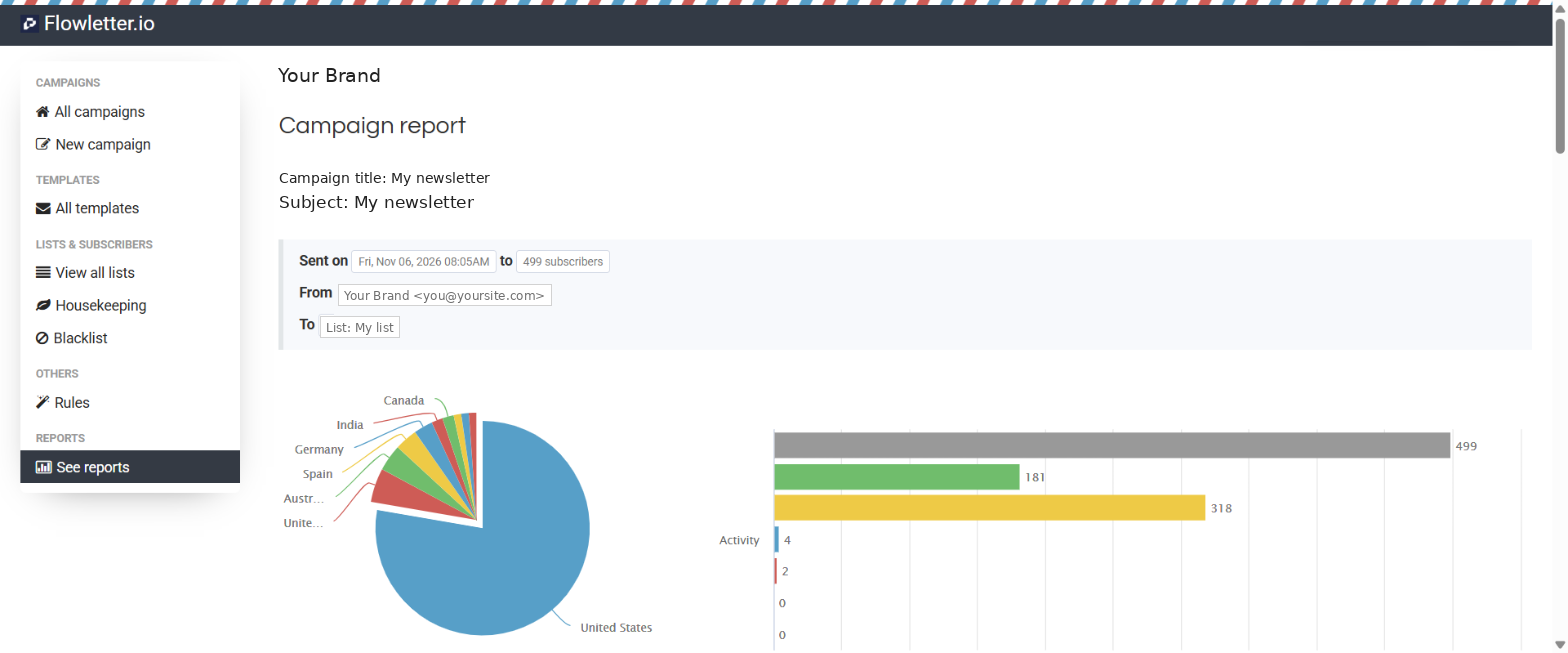
4) Scroll down to see the key numbers:
- Opened - the percentage and number of unique subscribers who opened, and the total number of opens.
- Not opened - subscribers who haven't opened yet.
- Clicked a link - the percentage and number of unique subscribers who clicked.
- Unsubscribed, Bounced and Marked as spam.
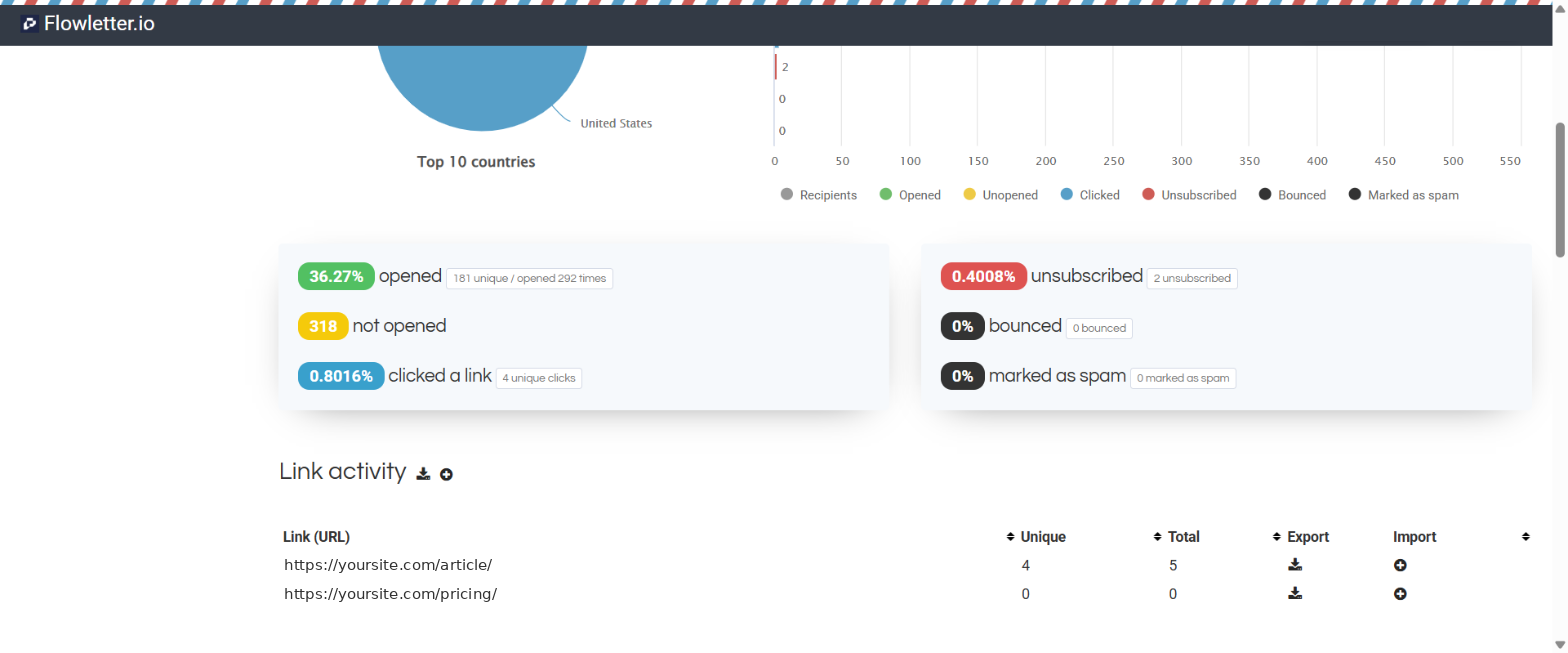
5) "Link activity" shows how many unique and total clicks each link received. Select the download icon to export the subscribers who clicked a link, or the + icon to add them to a list.
6) Further down you'll see the last 10 subscribers who opened, unsubscribed, bounced or marked your email as spam, and a full breakdown of opens by country.
Tip: To send your newsletter again to the people who didn't open it, see How to resend your newsletter to non openers.