How to clean your list in Flowletter
Removing inactive and unwanted email addresses keeps your open rates up and helps your emails reach the inbox. Flowletter has three tools for this.
Housekeeping: remove inactive subscribers
1) Login to your portal.flowletter.io account and select "Housekeeping" in the left menu.
2) Select "Inactive subscribers". For each list you'll see how many subscribers have never opened ("Did not open") and never clicked ("Did not click") any campaign you've sent them.
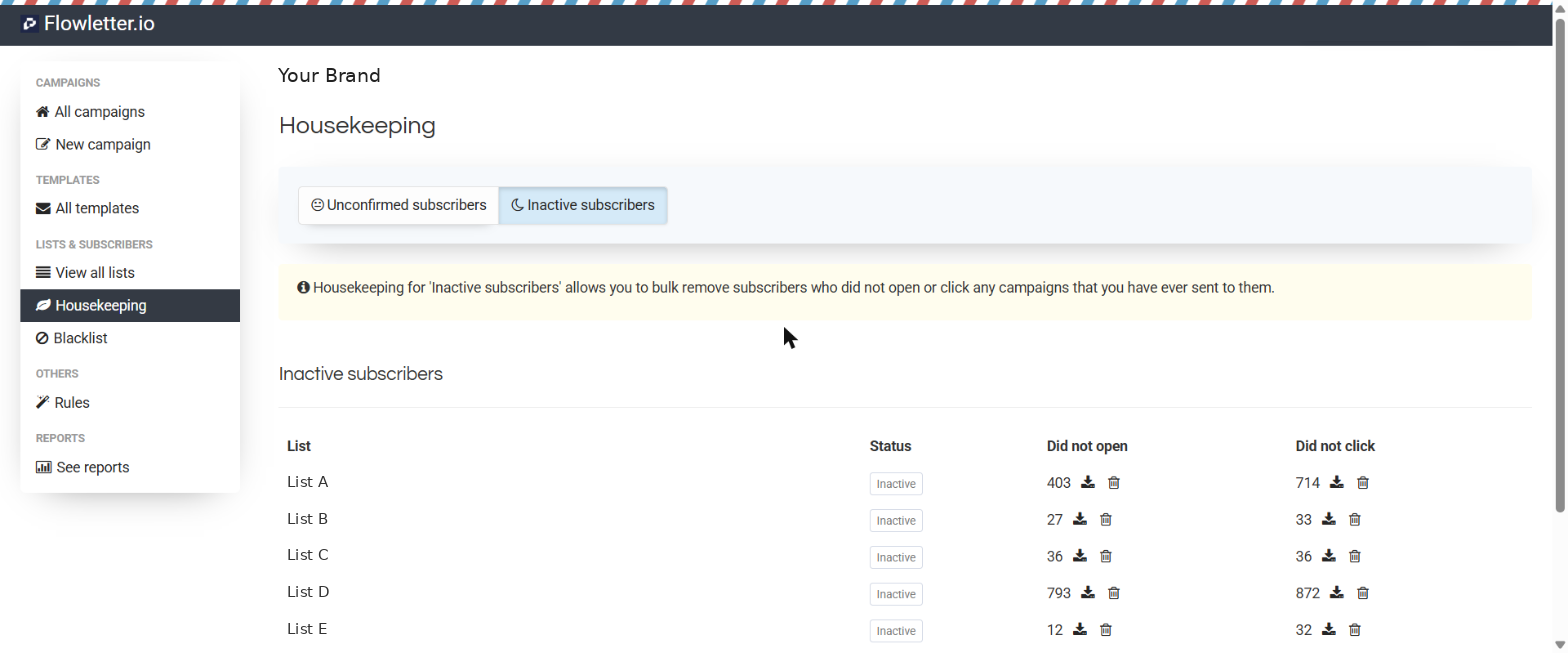
3) Select the download icon to export those subscribers first (recommended), then select the delete icon to remove them.
"Unconfirmed subscribers" lets you remove people who signed up to a double opt-in list but never clicked the confirmation link.
Please note: deleting subscribers can't be undone. We recommend exporting them first, and trying a re-engagement email before removing anyone.
Blacklist: block addresses and domains
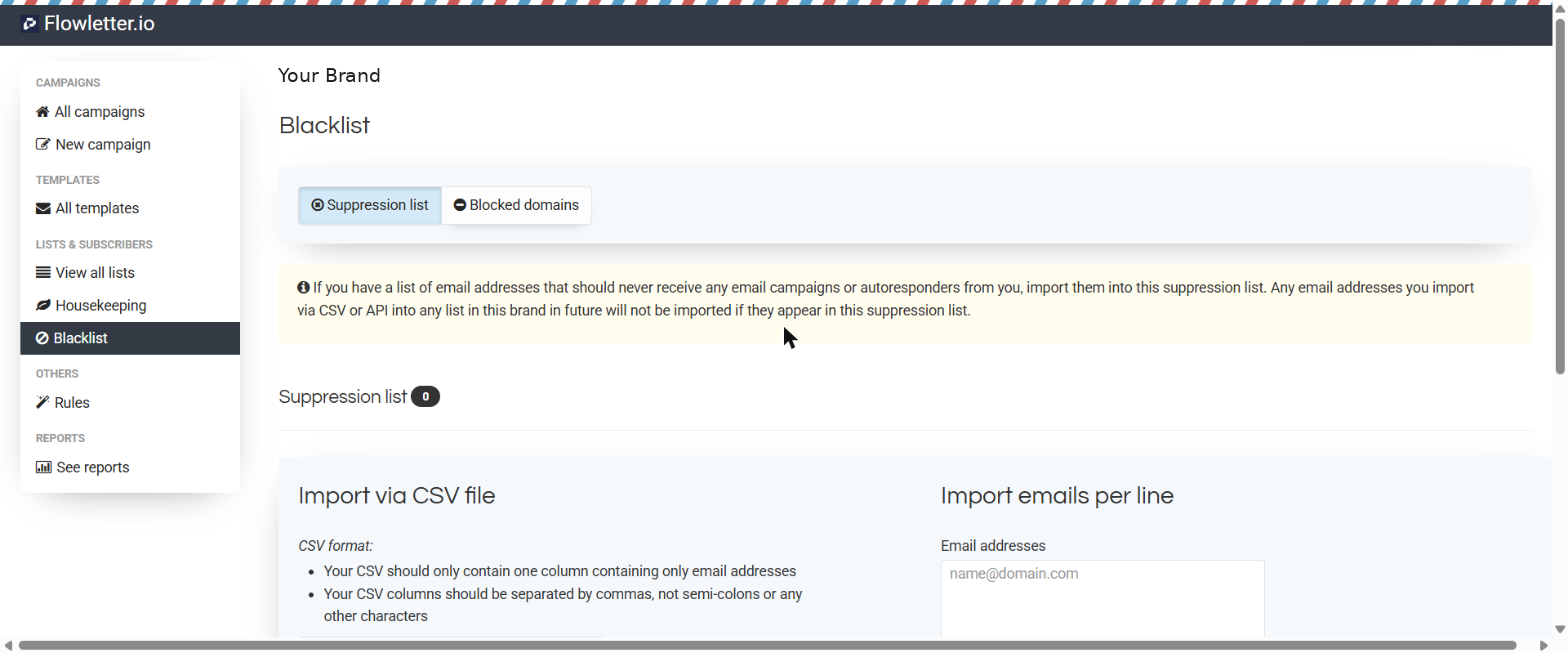
1) Select "Blacklist" in the left menu.
2) Under "Suppression list", import a CSV (one column of email addresses only) or paste email addresses one per line. These addresses will never receive your campaigns or autoresponders, and they're removed from all lists in your account.
3) Use "Blocked domains" to stop any address from a domain (for example a competitor) being added to your lists.
Mass unsubscribe
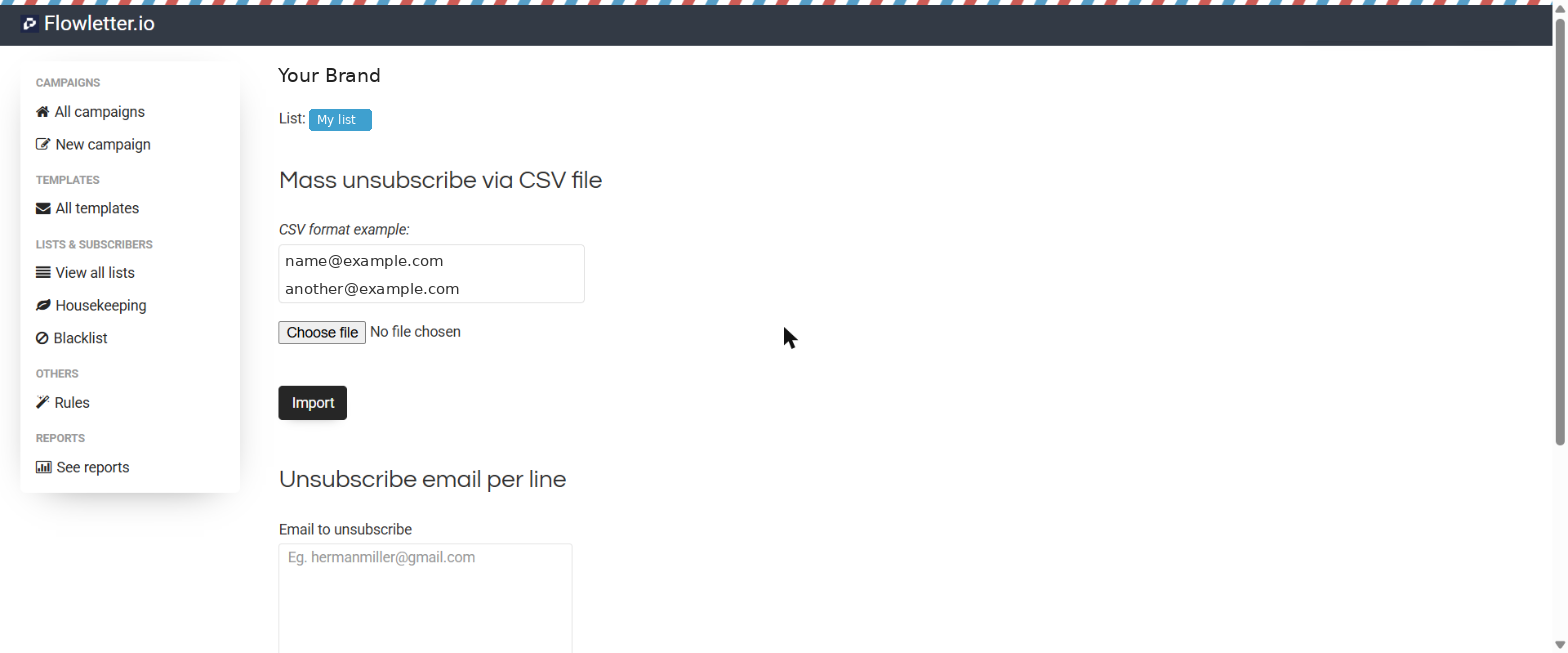
1) Select "View all lists" and select your list.
2) Select "Mass unsubscribe" at the top of the list.
3) Upload a CSV of email addresses, or paste them one per line, and select "Import" or "Unsubscribe". Unsubscribed subscribers stay in your list but won't receive any more emails.