
How to add a subscribe form to your website
Each list in Flowletter has its own subscribe form. You can share a ready-to-use form link, or add the form to your website with HTML.
1) Login to your portal.flowletter.io account.
2) Select "View all lists" and select your list.
3) Select "Subscribe form" at the top of the list.

4) Choose the option that suits you:
- Ready-to-use subscribe form - copy the link and share it anywhere, for example in an email signature, social media profile or button on your website.
- Subscribe form HTML code - copy the code and paste it into a Custom HTML block on any page or widget area of your WordPress site.
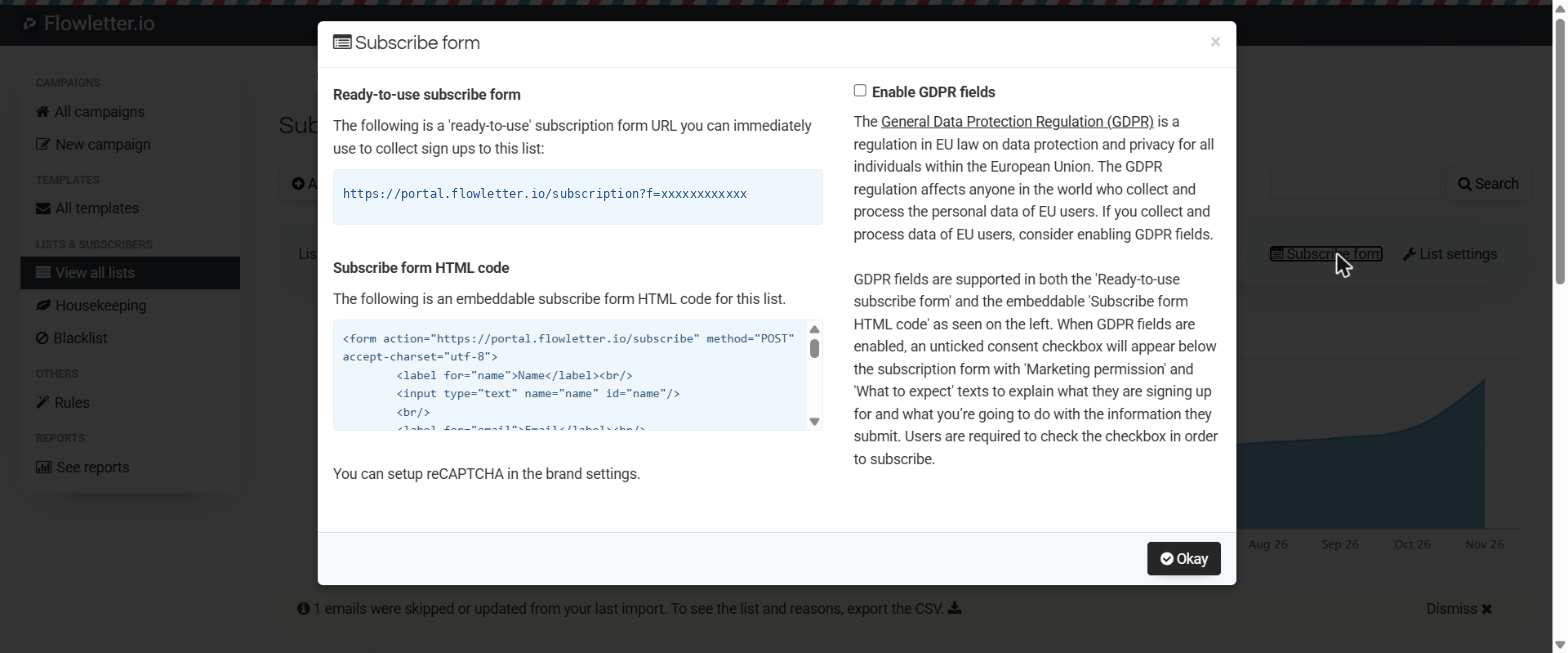
5) If you collect sign ups from people in the EU, tick "Enable GDPR fields". This adds a consent checkbox to both versions of the form, and people must tick it to subscribe.
6) Select "Okay" to close the window.
Good to know:
- Any custom fields on your list are added to the form automatically. You can remove fields you don't need from the HTML code (but keep the Email field).
- To choose what people see after they subscribe, or to switch on double opt-in, see "How to customize your list settings in Flowletter".